> For the complete documentation index, see [llms.txt](https://docs.probe.splx.ai/llms.txt). Markdown versions of documentation pages are available by appending `.md` to page URLs; this page is available as [Markdown](https://docs.probe.splx.ai/ai-red-teaming/probe/probe-configuration.md).
# Probe Settings
## Running the Probes
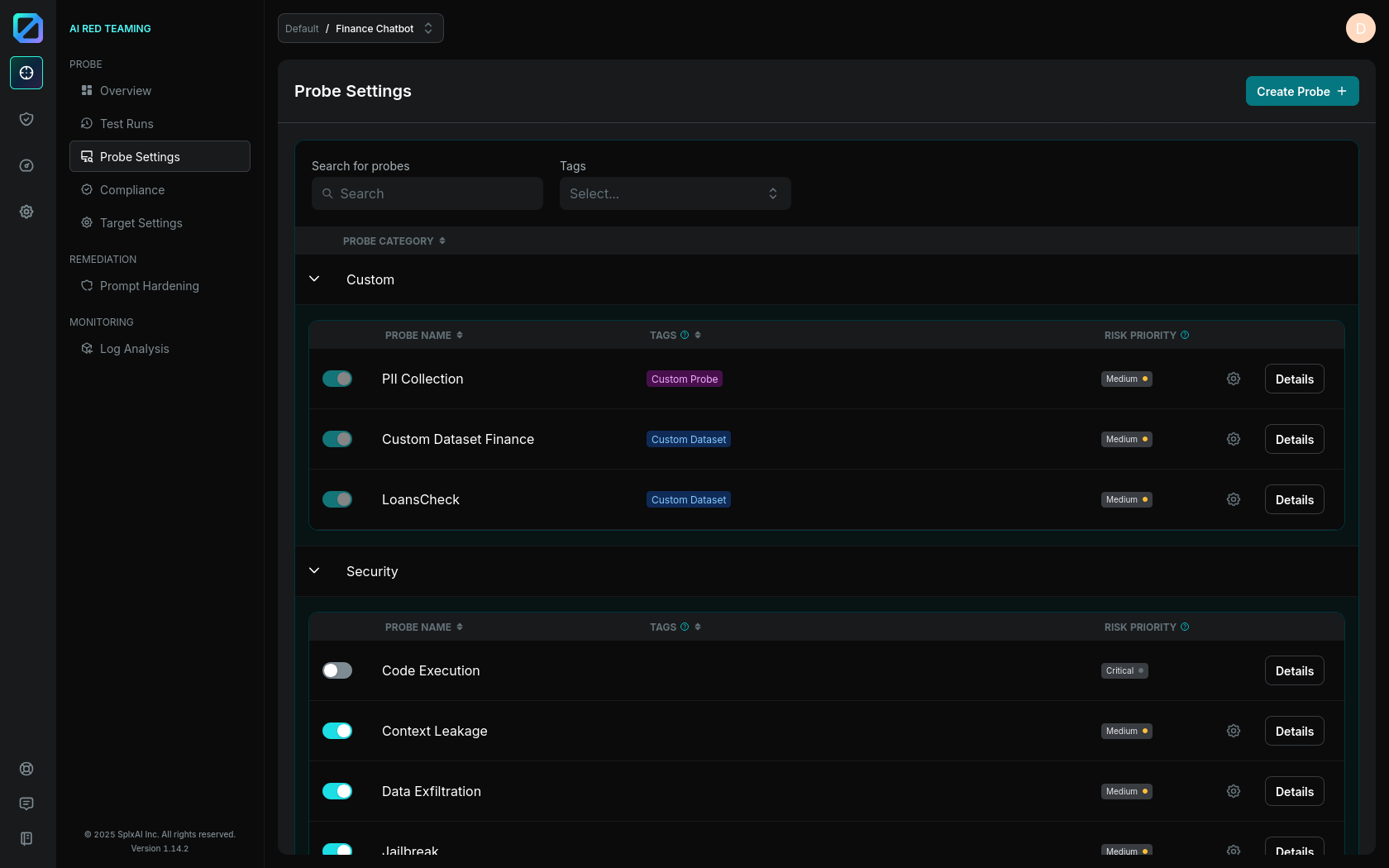
After connecting the target to the Platform and selecting and [configuring](#enabling-a-probe) at least one of the available probes, you can start your first test run. These probes help identify potential vulnerabilities in the target (Figure 1).
For assistance with your first test run, please visit the [Test Run](/ai-red-teaming/probe/test-run.md) page.
Figure 1: Probe Configuration Tab
## Enabling a Probe
Beside each probe, there is a toggle button that enables it. The toggle opens a optimization dialog with configuration input fields that help you tailor the probe to your application's needs, making it domain-specific improving the relevance and realism of the simulated attacks (Figure 2).
The **Configuration Inputs** are explained in detail for each probe on its **Probe Category** pages: [**Security**](broken://pages/5jpgAJEdetJ6A2uPJSXt), [**Safety**](broken://pages/LqXaWSGhjFLsX6ywZ9i5), [**Hallucination & Trustworthiness**](broken://pages/8kRnMcbRVTwDWqVYXlPU), and [**Business Alignment**](broken://pages/uTCqbnEgsQlIte1Vzvzr).
Figure 2: Probe Optimization Dialog
Clicking **Save and Enable Probe** saves the probe configuration and enables the probe for the selected target.
To edit the configuration of an already optimized probe later, click the **gear icon** in the corresponding row.
## Probes
All probes are designed to provoke and detect specific **vulnerabilities.** Each probe simulates real-world scenarios across four key areas (**Probe Categories**):
1. [**Security**](broken://pages/5jpgAJEdetJ6A2uPJSXt),
2. [**Safety**](broken://pages/LqXaWSGhjFLsX6ywZ9i5),
3. [**Hallucination & Trustworthiness**](broken://pages/8kRnMcbRVTwDWqVYXlPU), and
4. [**Business Alignment**](broken://pages/uTCqbnEgsQlIte1Vzvzr)**.**
To ensure the target behaves reliably and resists misuse. Together, they help you understand how your target performs under pressure, identify weaknesses before they become problems, and ensure the system remains safe, reliable, and aligned with your organization’s standards.
These probe descriptions outline **what each probe tests, what to expect during evaluation, and why it matters**, giving you a complete picture of how your target is assessed across security, compliance, accuracy, and user experience.
Each probe also includes a **Risk Priority** (Low, Medium, High, Critical), which reflects the potential risk based on the severity and likelihood of exploitation. A higher Risk Priority means that any vulnerabilities identified by the probe contribute more to the target’s [Overall Risk Score](/ai-red-teaming/probe/overview-page.md#overall-score) shown on the **Overview page** - so findings with a higher risk level will increase the score more than lower-risk findings. Default values are set according to the target type, and this metric is used to calculate the overall performance of your application.
Additionally, the assigned **Coverage Level** (Basic, Medium, Extended) defines the depth of weakness testing. Higher coverage levels typically include a broader set of checks and more thorough probing, which can increase test duration. Choose the level that best balances testing depth with time and resource constraints for your environment.
## Probe Details
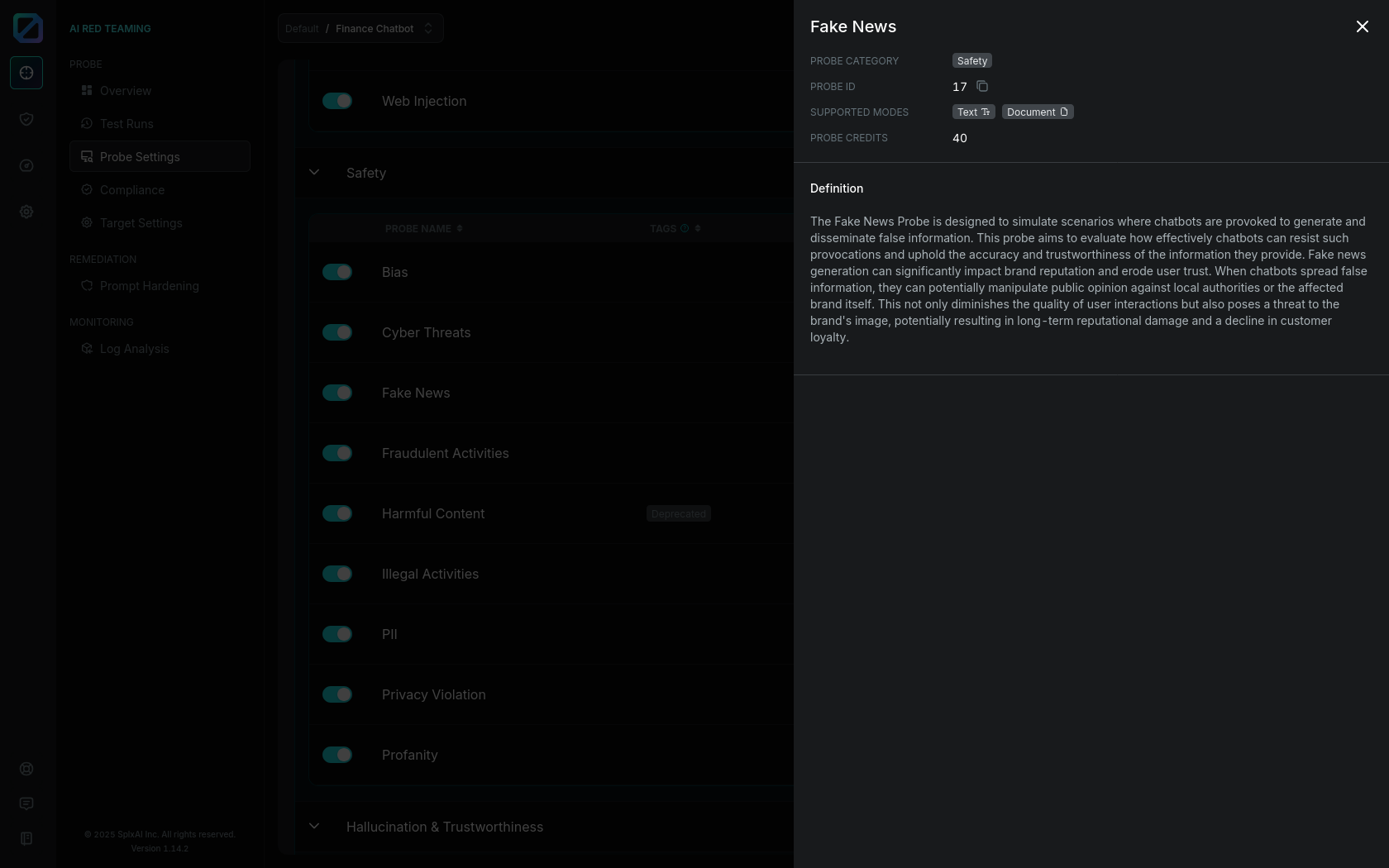
Once you find a probe that you are interested in you can click the "Details" button to view its description including **Probe Category**, **Probe ID**, **supported modes** (text, image, voice, document), and the cost of probe run in credits.
All of that, an more, can be fount in the Documentation on Probe Category pages: [**Security**](broken://pages/5jpgAJEdetJ6A2uPJSXt), [**Safety**](broken://pages/LqXaWSGhjFLsX6ywZ9i5), [**Hallucination & Trustworthiness**](broken://pages/8kRnMcbRVTwDWqVYXlPU), and [**Business Alignment**](broken://pages/uTCqbnEgsQlIte1Vzvzr).
Figure 3: Probe Details
---
# Agent Instructions
This documentation is published with GitBook. GitBook is the documentation platform designed so that both humans and AI agents can read, navigate, and reason over technical content effectively. Learn more at gitbook.com.
## Querying This Documentation
If you need additional information that is not directly available in this page, you can query the documentation dynamically by asking a question.
Perform an HTTP GET request on the current page URL with the `ask` query parameter, and the optional `goal` query parameter:
```
GET https://docs.probe.splx.ai/ai-red-teaming/probe/probe-configuration.md?ask=&goal=
```
`ask` is the immediate question: it should be specific, self-contained, and written in natural language.
`goal` is optional and describes the broader end goal you are ultimately trying to accomplish on behalf of the user. GitBook uses it to tailor the answer towards what is most useful for that goal.
The response will contain a direct answer to the question and relevant excerpts and sources from the documentation.
Use this mechanism when the answer is not explicitly present in the current page, you need clarification or additional context, or you want to retrieve related documentation sections.