> For the complete documentation index, see [llms.txt](https://docs.probe.splx.ai/llms.txt). Markdown versions of documentation pages are available by appending `.md` to page URLs; this page is available as [Markdown](https://docs.probe.splx.ai/ai-red-teaming/probe/target/add-target/integration-setup.md).
# Connection Setup
The first step in adding your target to the Platform is setting up the connection between them.\
With Platform, you can observe how your application performs across various layers, from the LLM to the platform level, which simulates real user interactions.
Start by selecting your connection type based on your use case.
{% hint style="info" %}
If you need to make Connection Setup changes to the existing Target, you can edit the target at any time on the [Target Settings](/ai-red-teaming/probe/target/target-settings.md) page. All Target parameters can be modified, but the connection type itself cannot be changed once the Target is created.
{% endhint %}
## Selecting a Connection Type
The following integration methods are currently supported:
* **API**: REST API connection between your GenAI application and the Platform.
* **Platform**: Test runs are executed on chatbots that are accessible through external platforms (e.g., Slack, WhatsApp, Glean). Probe uses the platform’s APIs to interact with the chatbots.
* **LLM**: Tests are executed directly on the Large Language Model.
* **LLM Development Platform:** The Platform connects with the APIs provided by LLM development platforms.
Once you have selected the appropriate connection type, the **Configure Your Connection** tab will appear on the next step, prompting you to input the required connection details. [These inputs will be specific to the type of connection you’ve chosen](/ai-red-teaming/probe/target/index.md), such as API keys, phone numbers, or endpoint URLs.
{% hint style="info" %}
The **Configure Your Connection** tab is specific to the chosen connection type. A list of available connection types can be found [here](/ai-red-teaming/probe/target/index.md).
{% endhint %}
Figure 1: Connection Type Selection
## Connection Test
Once all the required information is entered on the **Configuration Tab** and you click the **“Continue”** button, a connection test between the Platform and your target will automatically run in the background. The result of this test will be shown in a dialog box.
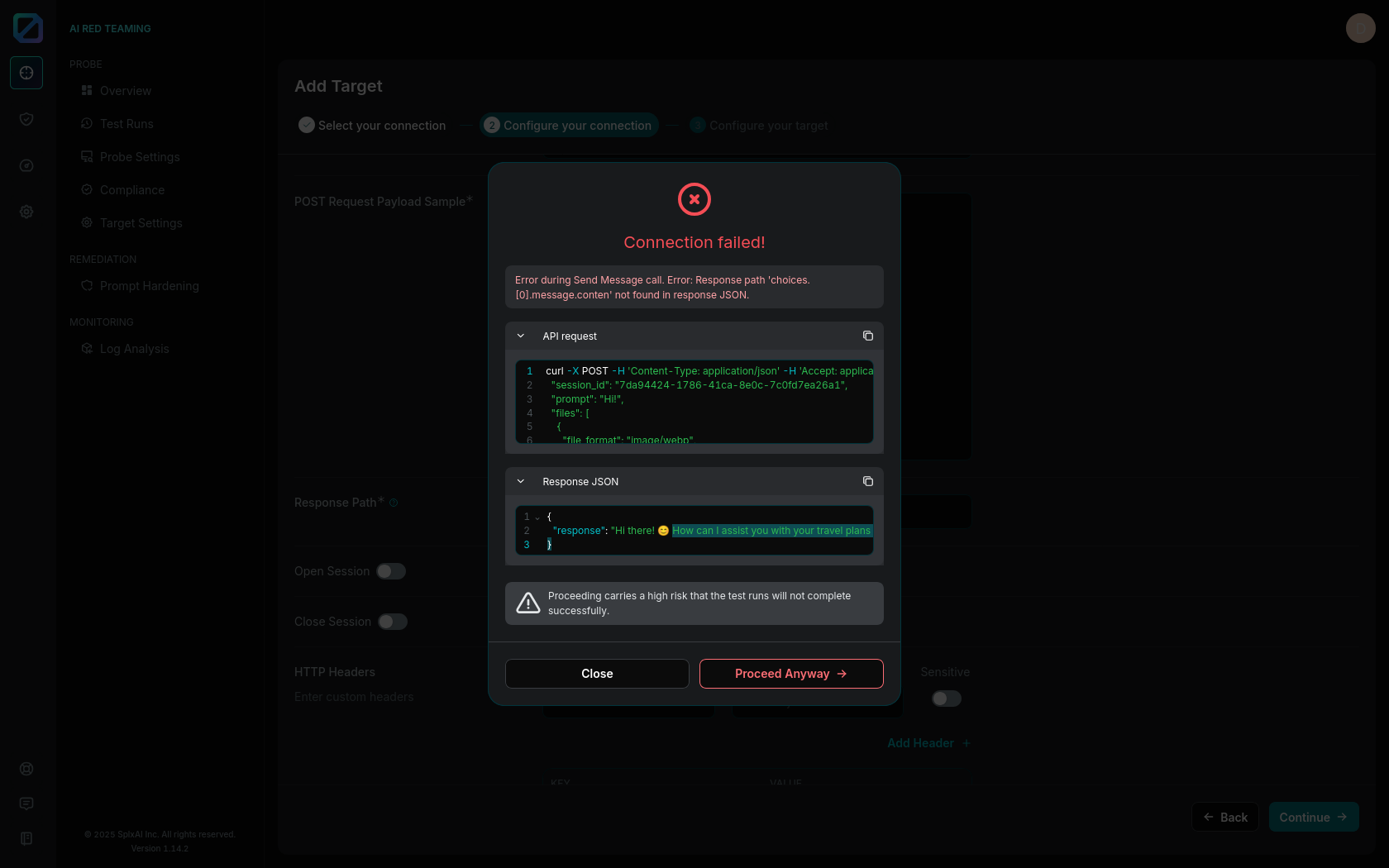
If the connection test fails, the **API request** sent to the target and the **response JSON** received are shown in collapsible sections within the dialog. You can expand these sections to view the full details and use the **copy icons** next to each section to copy the content for debugging or documentation purposes.
If the connection is successful, a confirmation message, "Connection Successful", is displayed. You can proceed to the next configuration step only after a successful connection test.
Figure 2: Failed Connection Example
Figure 3: Successful Connection Example
Debugging Failed Connection
* If the test connection fails, the error message indicates the possible reason of the failure.
* Ensure that your target is accessible through the internet and not only private intranet.
* If needed make sure that the SPLX Platform's IP address is whitelisted.
* Check if all necessary tags (**{message}**, **{session\_id}**) are provided in POST request payload.
* Check that the response path format is correct.
* Check that you entered the correct authentication information.
---
# Agent Instructions
This documentation is published with GitBook. GitBook is the documentation platform designed so that both humans and AI agents can read, navigate, and reason over technical content effectively. Learn more at gitbook.com.
## Querying This Documentation
If you need additional information that is not directly available in this page, you can query the documentation by asking a question.
Perform an HTTP GET request on the following URL with the `ask` and `goal` query parameters:
```
GET https://docs.probe.splx.ai/ai-red-teaming/probe/target/add-target/integration-setup.md?ask=&goal=
```
`ask` is the immediate question: it should be specific, self-contained, and written in natural language.
`goal` is what the user is ultimately trying to achieve, the reason they need the answer. Sharing it helps GitBook give you a better, more relevant answer. A goal is most helpful when it describes the outcome the user wants rather than restating the question. For example, with `ask=how do I create an API token`, a goal like `automate deployments from our CI pipeline` lets GitBook tailor the answer to that use case.
The response will contain a direct answer to the question and relevant excerpts and sources from the documentation.
Use this mechanism when the answer is not explicitly present in the current page, you need clarification or additional context, or you want to retrieve related documentation sections.
.png?alt=media&token=8a224ed0-1df5-4bfb-bfe2-514b812af199)
.png?alt=media&token=8159fff2-edc9-4298-848e-f7daf3e0bec3)