> For the complete documentation index, see [llms.txt](https://docs.probe.splx.ai/llms.txt). Markdown versions of documentation pages are available by appending `.md` to page URLs; this page is available as [Markdown](https://docs.probe.splx.ai/ai-red-teaming/probe/target/index/glean.md).
# Glean
## Selecting the Connection Type
After [choosing Glean as your connection type](/ai-red-teaming/probe/target/add-target/integration-setup.md), a configuration tab appears where you’ll enter the required connection details. Supported multi modalities for this integration are: Text, Image and Document.
## Integration Setup
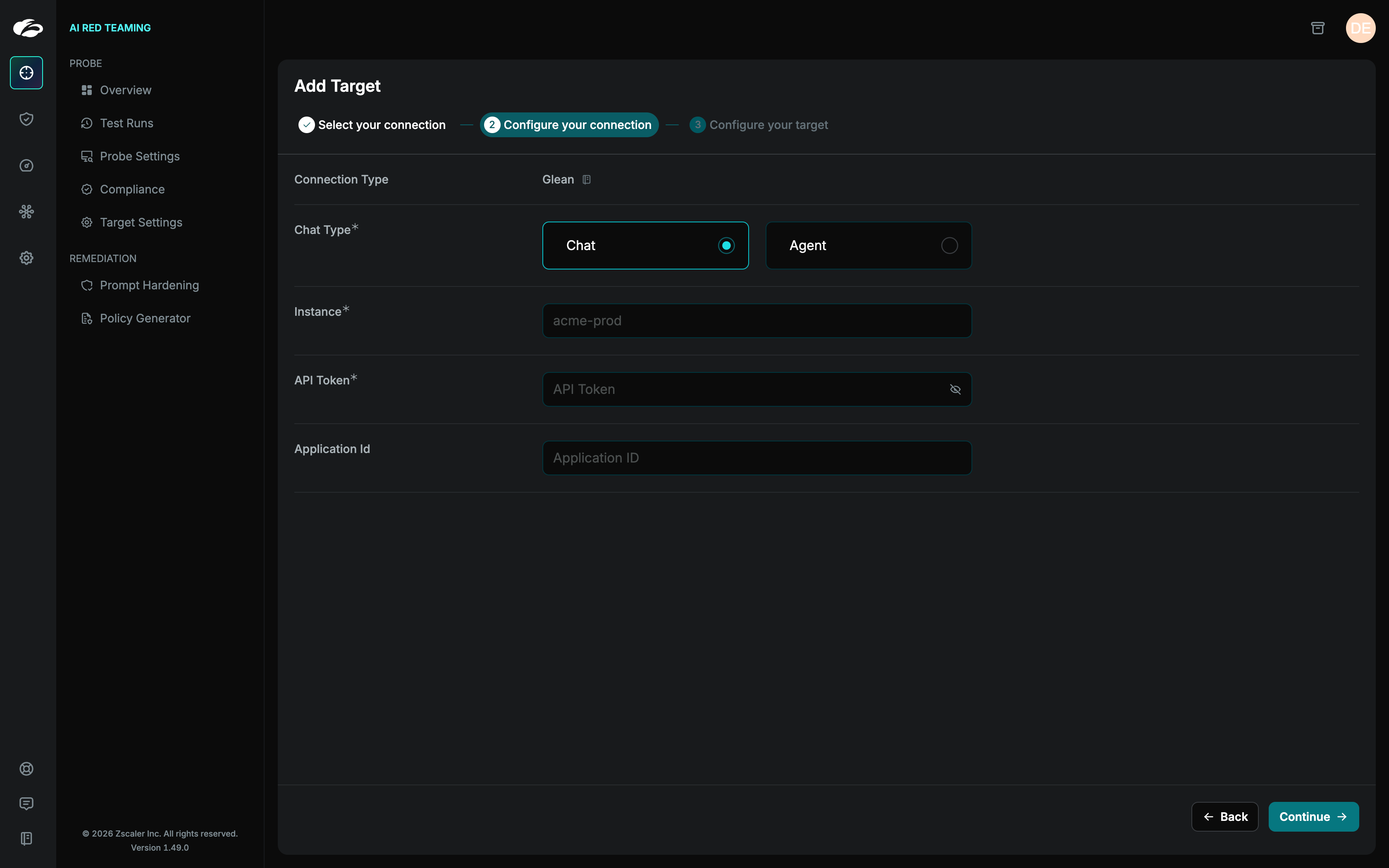
Glean works in a single flow with an optional agent override:
1. **Standard Chat**: This is the default chat type that connects users to the organization-wide Glean assistant. It provides generalized support for all users, leveraging Glean’s centralized resources. This type is ideal for scenarios where no specific agent or scoped application is required. Only the API Token and Instance Slug are necessary for configuration.
2. **Agent Chat**: This chat type enables communication with a specific Glean Agent within your organization. It is suitable for scenarios where a targeted agent, and optionally a scoped application, is required to address a more specific use case. To configure this type, you must provide the Agent ID and can optionally add the Application ID to restrict the interaction to a particular application.
Figure 1: Standard Chat
Figure 2: Agent Chat
Fields on the Platform
* **Instance** - Your Glean instance slug (e.g., `acme-prod` from `https://acme-prod-be.glean.com`).
* **API Token** - Client API token with chat scope.
* **Application ID (optional)** - Scope the chat to a specific application.
* **Agent ID (optional)** - The agent you want to target.
#### How to obtain the required fields
* **Instance** - Admin console → → copy the value in Server instance (QE) and take the part before `-be.glean.com`. \
(e.g., `https://{your-glean-instance}-be.glean.com/...`**)**
* **Create a Client API Token** - Admin console → Platform → API Tokens → Client Tokens tab → Add token, pick scopes/expiry, save the secret.
Additional fields:
* **Agent ID (optional) -** In the Glean Developer console (Developers → Agents), open the agent and copy Agent ID.
* **Application ID (optional)** - In the Glean Developer console (Developers → Agents), copy Application ID if your org uses multiple apps. (Fields are shown alongside the agent configuration.)
{% hint style="info" %}
Additional recommendations to enable in Glean:
* File upload enabled in your tenant if you plan to test documents/images.
* Predefined policy-block response added (optional but handy for red-team runs).
{% endhint %}
For more information, you can explore the official [Glean](https://developers.glean.com/home) documentation or contact your platform administrator.
---
# Agent Instructions
This documentation is published with GitBook. GitBook is the documentation platform designed so that both humans and AI agents can read, navigate, and reason over technical content effectively. Learn more at gitbook.com.
## Querying This Documentation
If you need additional information that is not directly available in this page, you can query the documentation by asking a question.
Perform an HTTP GET request on the following URL with the `ask` and `goal` query parameters:
```
GET https://docs.probe.splx.ai/ai-red-teaming/probe/target/index/glean.md?ask=&goal=
```
`ask` is the immediate question: it should be specific, self-contained, and written in natural language.
`goal` is what the user is ultimately trying to achieve, the reason they need the answer. Sharing it helps GitBook give you a better, more relevant answer. A goal is most helpful when it describes the outcome the user wants rather than restating the question. For example, with `ask=how do I create an API token`, a goal like `automate deployments from our CI pipeline` lets GitBook tailor the answer to that use case.
The response will contain a direct answer to the question and relevant excerpts and sources from the documentation.
Use this mechanism when the answer is not explicitly present in the current page, you need clarification or additional context, or you want to retrieve related documentation sections.
.png?alt=media&token=d62ad460-1968-4fa8-96a1-f660aba5ad00)