MCP Servers
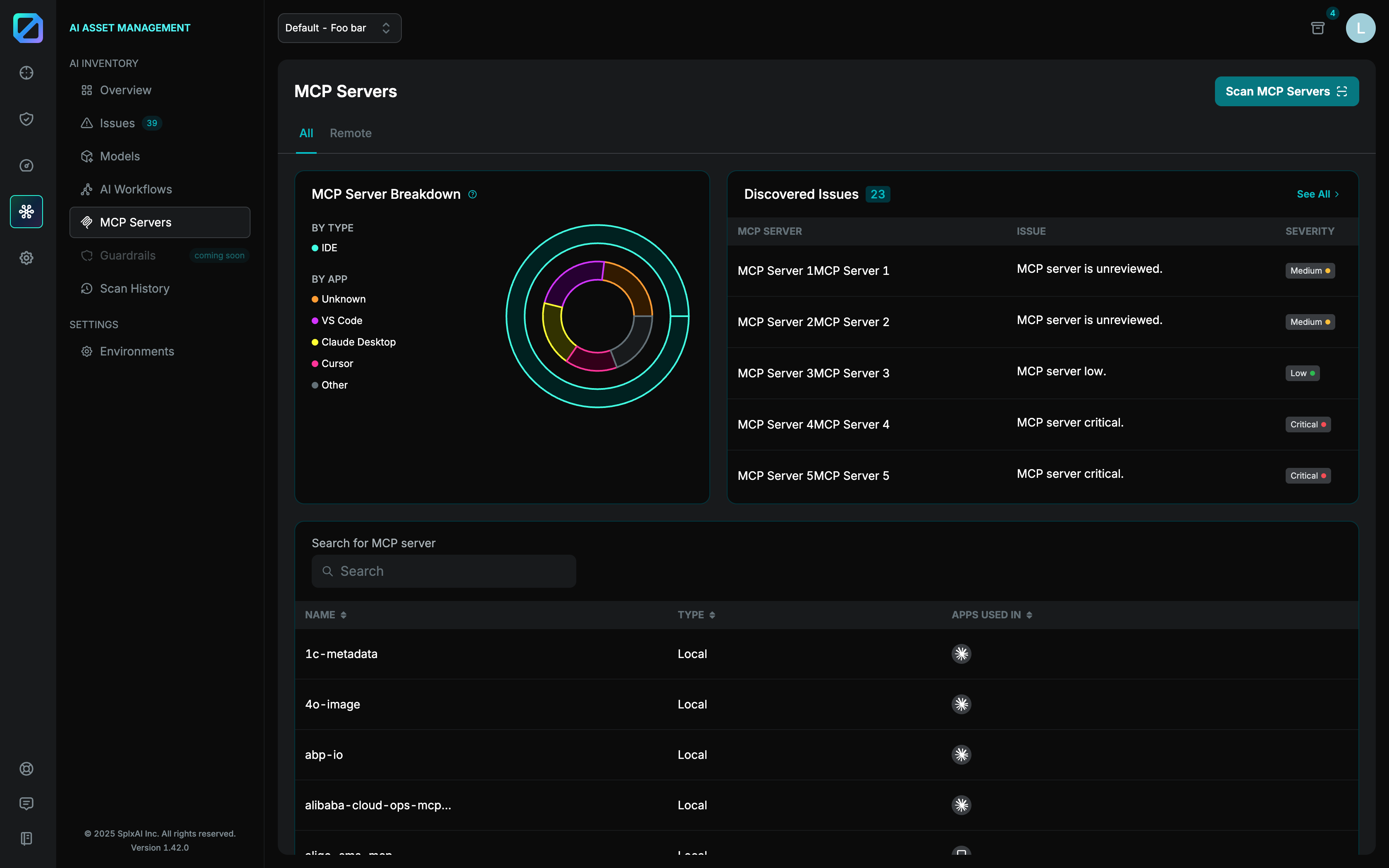
The MCP Servers page is designed to provide an overview and control panel for managing MCP servers. This page enables users to monitor discovered servers, assess their statuses, and take necessary actions based on issue severity. By centralizing server details and offering quick navigation to specific components, the page simplifies server management in AI workflows.
The MCP Servers page is divided into several components that help users monitor, assess, and manage multiple servers effectively. Servers are organized into two tabs: All and Remote, allowing users to easily focus on specific server categories or view all managed servers collectively.
All Servers Tab
A visual chart on the page provides a breakdown of servers by Type and highlights their distribution across various Applications. Each app is either an IDE or a framework: VSCode (IDE), Cursor (IDE), LangChain (Framework), OpenAI Agents (Framework). The chart provides an overview of the server landscape, allowing administrators to quickly understand usage distribution.
The Discovered Issues section displays detailed information about server-related issues, including the affected servers, issue descriptions, and severity levels (High, Medium, Low). This makes it easy for users to identify and prioritize critical problems at a glance. The complete table can be accessed by clicking "See All" which redirects to the Issues page.
Additionally, the page includes a search bar for filtering MCP servers by name, enabling quick access to specific servers. The table includes the following details for each server:
Name,
Type, and
Apps Used In.
Clicking on a specific server name redirects the user to the MCP Server Details page, showcasing in-depth server-specific information.

Remote Servers Tab
The Remote tab provides a detailed overview of all remote MCP Servers connected to the platform. It centralizes vital information about servers, helping users assess their status, associated components, issues, and usage within various environments and applications.
Remote MCP Servers are organized into categories: Unreviewed, Approved, Unwanted, and In Review. These classifications help users prioritize server assessment and understand the system's current state.
Unreviewed servers are newly detected and awaiting assessment.
Approved servers indicate those validated and deemed safe for operational use.
Unwanted servers represent those flagged as unnecessary or potentially harmful.
In Review servers are currently under evaluation for approval or rejection.
By grouping servers in these categories, the platform ensures users can systematically manage different server statuses.
Discovered issues summary highlights the total number of issues identified across all remote servers with their severity levels - Critical, High, Medium, and Low. The issues cover various vulnerabilities, such as missing schemas, unrestricted query inputs, or potential data exposure risks. This summary helps users quickly grasp the overall security health of their remote server ecosystem.
Users can drill down into each issue to view detailed descriptions, affected servers, related components, and their severity levels. This functionality helps prioritize and resolve vulnerabilities efficiently.
Each remote MCP Server is listed in a detailed table that provides key insights, including:
Name and URL: Information that helps identify the server and access it directly.
Number of MCP Components: A count of all tools, prompts, resources, and templates hosted by the server, allowing for quick evaluation of its complexity.
Issues: Displays the total number of detected issues for each server.
Environment Usage: Shows which environments make use of the server's components.
Application Usage: Identifies how server components are utilized across applications, providing insights into dependencies and potential impact areas.
Status: server's current state (unreviewed, approved, unwanted or in review)
The "Scan MCP Servers" button initiates a fresh scan across all remote servers, ensuring up-to-date information on newly added servers or issue changes.

MCP Server Details Page
When a remote server is clicked in the table, the MCP Server Details page opens. The page provides a comprehensive view of the selected server and its components. In the top-right corner, users can access the Re-Scan MCP Server button and a status dropdown to update or check the server's current state.
Overview Tab
The Overview tab provides a summary of the MCP Server's current state, including its Name, URL, and Scan History.
At a glance, users can view important statistics such as the number of Tools, Prompts, Resources, and Resource Templates associated with the server. Additionally, it highlights the Scan Timestamp, Status, when the status last changed, and by whom.
A visual graph below showcases the connections between the MCP Server, its client, and associated components such as tools and prompts. Red warning icons indicate issues within specific components, providing users with a clear map for assessing and resolving vulnerabilities.
A detection log at the bottom displays timestamps of identified vulnerabilities, linked applications, and asset locations, enabling users to trace findings to their source efficiently.

Components Tab
The Components tab catalogues and organizes all tools, prompts, resources, and resource templates associated with the MCP Server. Each component is displayed with detailed metadata, including descriptions, schemas, and configurations. This information allows users to understand the function and structure of components, such as the "web_search_exa" tool or "get_code_context_exa" tool, and their role within the larger AI system.
Interactive options, such as expanding input and output schemas, give users detailed insights into component configurations. "Show Issues" buttons associated with each component allow users to identify related vulnerabilities instantly for prioritization and resolution.

Issues Tab
The Issues tab provides a centralized view of all pending and resolved issues detected within the MCP Server. Pending issues are categorized by severity:
Critical,
High, Medium, and
Low
and displayed in a donut chart for a quick summary. Below, a detailed table lists each issue with associated component type, detection timestamp, and severity.
Filters, such as the "Severity" dropdown or text search, make it simple to narrow down issues of specific concern. Clicking the "Details" button for any issue reveals additional information, helping users assess and address vulnerabilities effectively. The Resolved tab tracks previously addressed issues, ensuring an auditable history of resolutions.

Connection Tab
The Connection tab allows users to configure and manage the MCP Server's connection settings.The "Auth" section enables users to add and customize HTTP headers for server authentication and configuration. By specifying a key-value pair, such as "Authorization" and an appropriate token (e.g., Bearer jwt-token), users can securely establish communication with the server.
An "Add Header" action lets users add additional headers for advanced configurations. Once all required fields are populated, users can click the "Save & Test Connection" button to validate and apply their settings, ensuring the server connection is functioning correctly.

Last updated
Was this helpful?