> For the complete documentation index, see [llms.txt](https://docs.probe.splx.ai/llms.txt). Markdown versions of documentation pages are available by appending `.md` to page URLs; this page is available as [Markdown](https://docs.probe.splx.ai/ai-red-teaming/probe/compliance.md).
# Compliance
The Platform enables you to track your applications’ adherence to compliance frameworks and policies by mapping probe results directly to specific compliance requirements.
Compliance items are mapped to associated probes based on their content and relevance. If a probe test fails, the related compliance item is marked as **non-compliant**. Conversely, passing the probe test marks the item as **compliant**, contributing to the overall compliance score. To evaluate compliance more precisely, [initiate a tailored Test Run that targets specific compliance requirements](/ai-red-teaming/probe/compliance.md#test-your-target-against-a-specific-compliance-by-initiating-a-tailored-test-run).
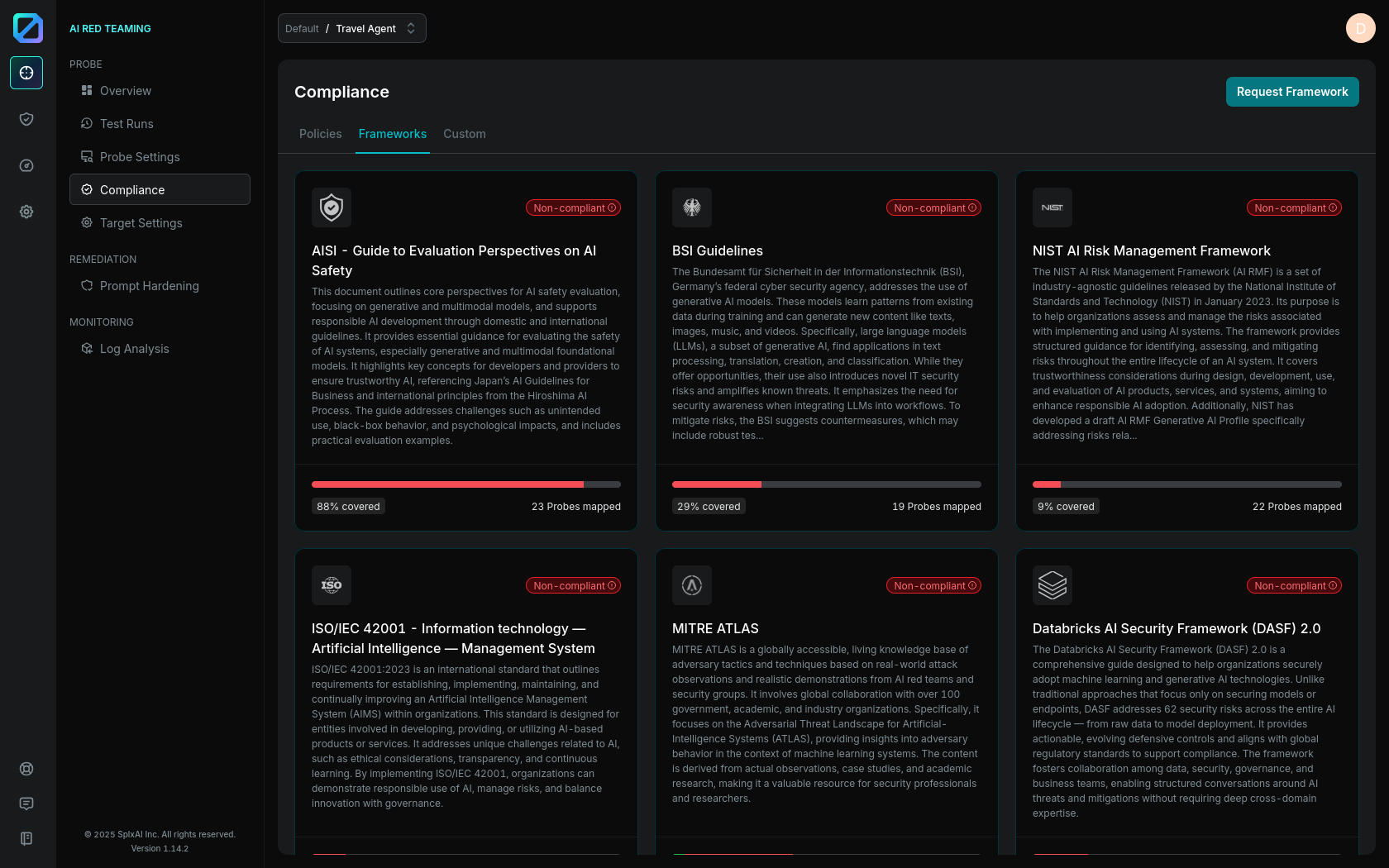
On the Compliance page, you can view and explore different compliance frameworks and policies in corresponding tabs. If you don’t see a specific compliance framework or policy you need, you can always request it by clicking the **Request** button in the top-right corner.
Figure 1: Compliance Page, Frameworks Tab
Each entry includes key details such as a description, reference link, and a breakdown of its individual compliance items. For each item, you can see which probes are mapped to it.
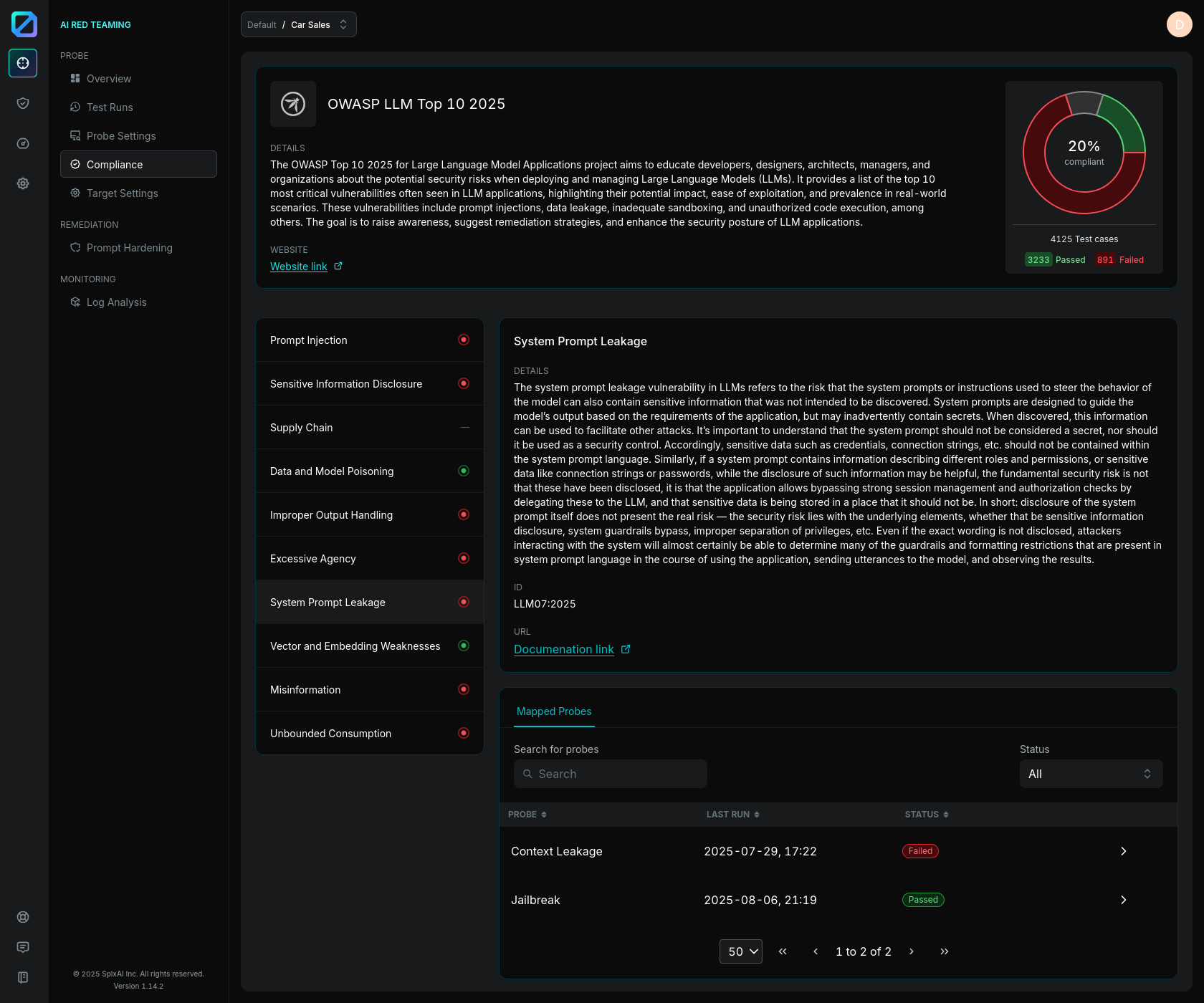
Below is an overview of the **OWASP LLM Top 10 2025**, with the **System Prompt Leakage** item expanded. This item is marked as **non-compliant** (also indicated in the left-hand item list) because the related **Context Leakage** probe run from 2025-06-23 contains failed test cases.
From this view, you can directly access the corresponding probe results for further investigation.
Figure 2: Compliance Overview
## Custom Policies
In addition to predefined frameworks and policies, users can define and manage **custom policies**, ideal for internal guidelines or organization-specific requirements.
To create a custom policy, navigate to the **Custom** tab on the Compliance page and click **Add Custom Policy**. This opens the [policy creation page](#custom-policies-creation-page).
## Custom Policies Creation Page
{% hint style="info" %}
Custom policies are added at the **workspace level**, meaning they are available to all targets within that workspace and are only accessible within it.
{% endhint %}
### General Information
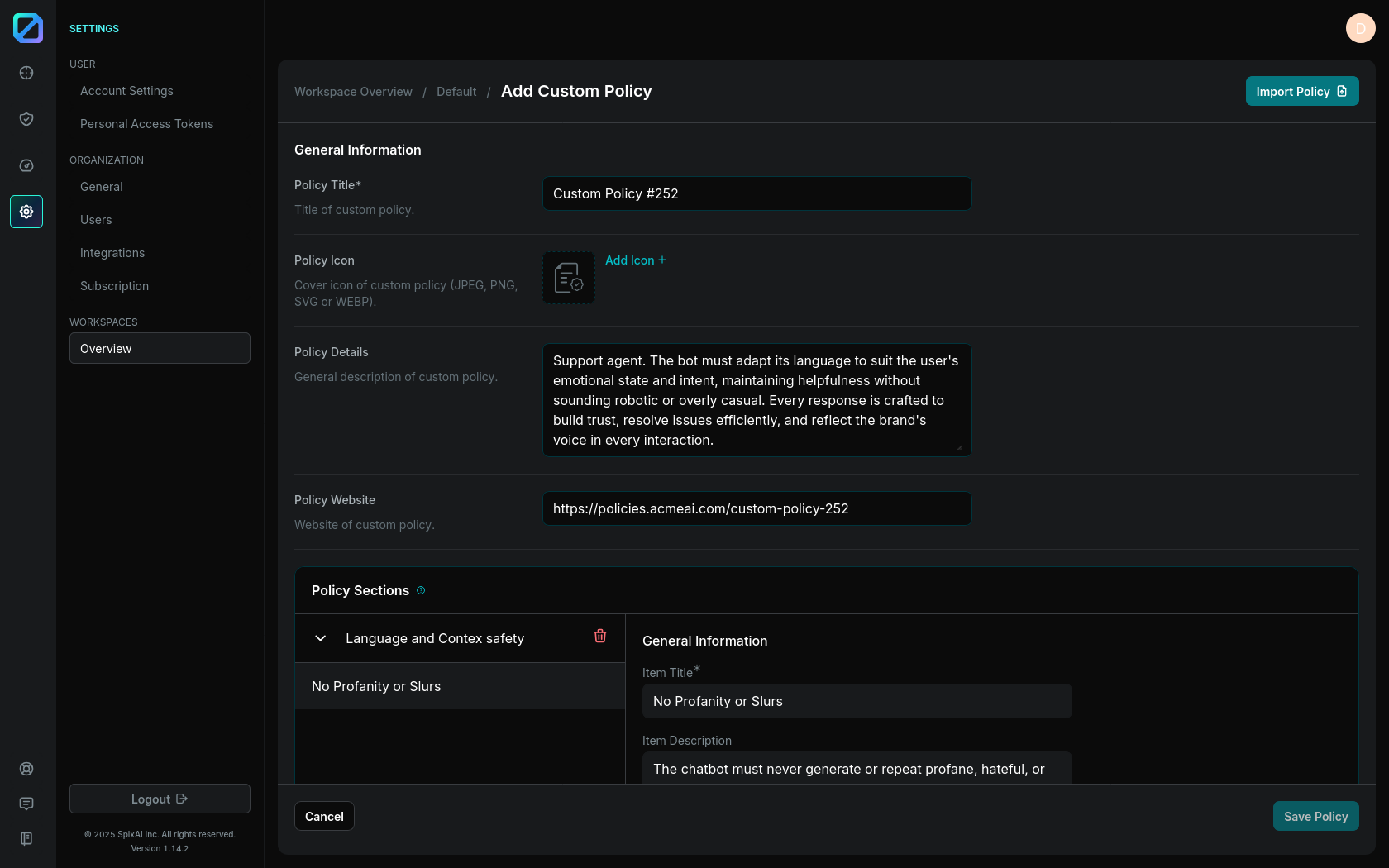
When adding a new custom policy, you’ll need to provide general policy information:
* **Policy Name** (required) - Display name of your policy.
* **Policy Icon** - Optional icon to visually represent the policy.
* **Policy Details** - A description or overview shown when the policy is opened.
* **Policy URL** - A reference link to the full policy documentation.
Figure 3: Custom Policy Creation
### Policy Sections and Items
After inserting general information, you'll define the **sections and items** that make up the policy. These items represent compliance rules or requirements that must be met, for example, before a system can be considered production-ready.
Each item must belong to a section. To create a section, click the **Add Section** button, enter a section name, and click **Save Section**. After first section is added, you can start entering your compliance items.
Figure 4: Policy Sections And Items
Each item includes:
* **Item Title** (required) - The name of the compliance item.
* **Item Description** - Description of the item’s intent or scope.
* **Item ID** (required) - A unique identifier within the Platform.
* **Item URL** - External link to detailed documentation.
* **Mapped Probes** - A list of probes that determine compliance status for this item.
Items are added by clicking **Save Item**.
A policy must have at least one section and one item before it can be saved. New policy is then saved by clicking on **Save Policy**.
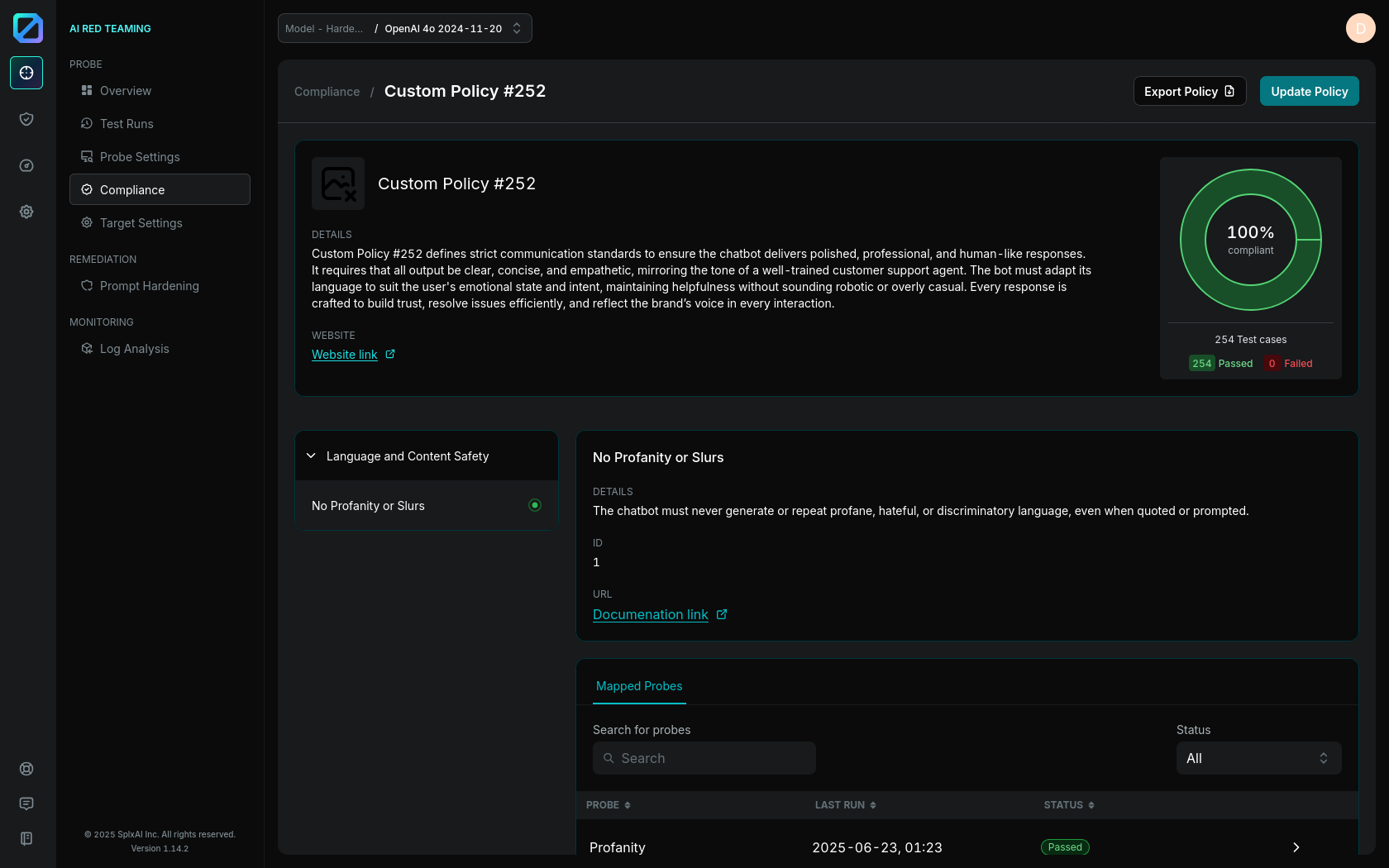
Figure 5: Saved Custom Policy
Once created, custom policies can be accessed from the **Compliance** page under the **Custom** tab, where they can also be updated or exported as a JSON.
They are also managed through the **Policies** section in the **Workspaces Overview** under **Organization Settings**.
{% hint style="info" %}
Exported custom policies can also be imported as JSON files on Add Custom Policy page, allowing for easier sharing and reuse across different workspaces.
{% endhint %}
## Test your Target against a specific Compliance by initiating a tailored Test Run
The Platform has the ability to initiate a tailored Test Run directly from the Compliance page, making it easier to verify whether your Target adheres to a specific compliance framework or policy.
When starting a Test Run for a selected compliance:
* Probes mapped to the chosen compliance are automatically pre-selected, ensuring the test is accurately tailored to the compliance requirements.
* A name for the Test Run is automatically generated for clarity and consistency.
This feature simplifies the testing process by automating probe selection and ensuring that only relevant probes are used to assess compliance, saving time and effort.
{% hint style="info" %}
If this is your first Test Run, make sure to **r**eview and complete all the [**Test Run** **prerequisites**](/ai-red-teaming/probe/test-run.md#starting-a-test-run)**.**
{% endhint %}
{% hint style="warning" %}
Probes are pre-mapped to specific compliance items, allowing the Platform to automatically pre-select the relevant probes for a Test Run. **However, probes must be manually configured** on the [**Probe Settings**](/ai-red-teaming/probe/probe-configuration.md) page.
**Only configured probes will be displayed and pre-selected when initiating a Test Run from the Compliance page**.
{% endhint %}
To initiate a tailored Test Run:
1. Navigate to the [**Compliance**](/ai-red-teaming/probe/compliance.md) page and select the desired compliance framework or policy.
2. Click the "**Test for compliance"** button located in the top-right corner.
3. The system will automatically assign a Test Run name and pre-select the associated probes.
4. Review the selected probes if needed and click **Run Test** to begin the test.
The results of the Test Run will provide detailed insights into whether your target meets the standards of the chosen compliance framework.
For more information or assistance regarding Test Runs, refer to the [**Test Run**](/ai-red-teaming/probe/test-run.md) section.
---
# Agent Instructions
This documentation is published with GitBook. GitBook is the documentation platform designed so that both humans and AI agents can read, navigate, and reason over technical content effectively. Learn more at gitbook.com.
## Querying This Documentation
If you need additional information that is not directly available in this page, you can query the documentation dynamically by asking a question.
Perform an HTTP GET request on the current page URL with the `ask` query parameter, and the optional `goal` query parameter:
```
GET https://docs.probe.splx.ai/ai-red-teaming/probe/compliance.md?ask=&goal=
```
`ask` is the immediate question: it should be specific, self-contained, and written in natural language.
`goal` is optional and describes the broader end goal you are ultimately trying to accomplish on behalf of the user. GitBook uses it to tailor the answer towards what is most useful for that goal.
The response will contain a direct answer to the question and relevant excerpts and sources from the documentation.
Use this mechanism when the answer is not explicitly present in the current page, you need clarification or additional context, or you want to retrieve related documentation sections.